Window and door software features in real examples
Explore drawings, positions, glass lists, material reports, cutting information and PDFs in BG Frame App.
From drawings to working reports
Follow dimensions through drawings, material lists, cutting plans and quotations. These screens use a training project; verify your exact profile system and manufacturing data separately.
Position dimensions and window drawings
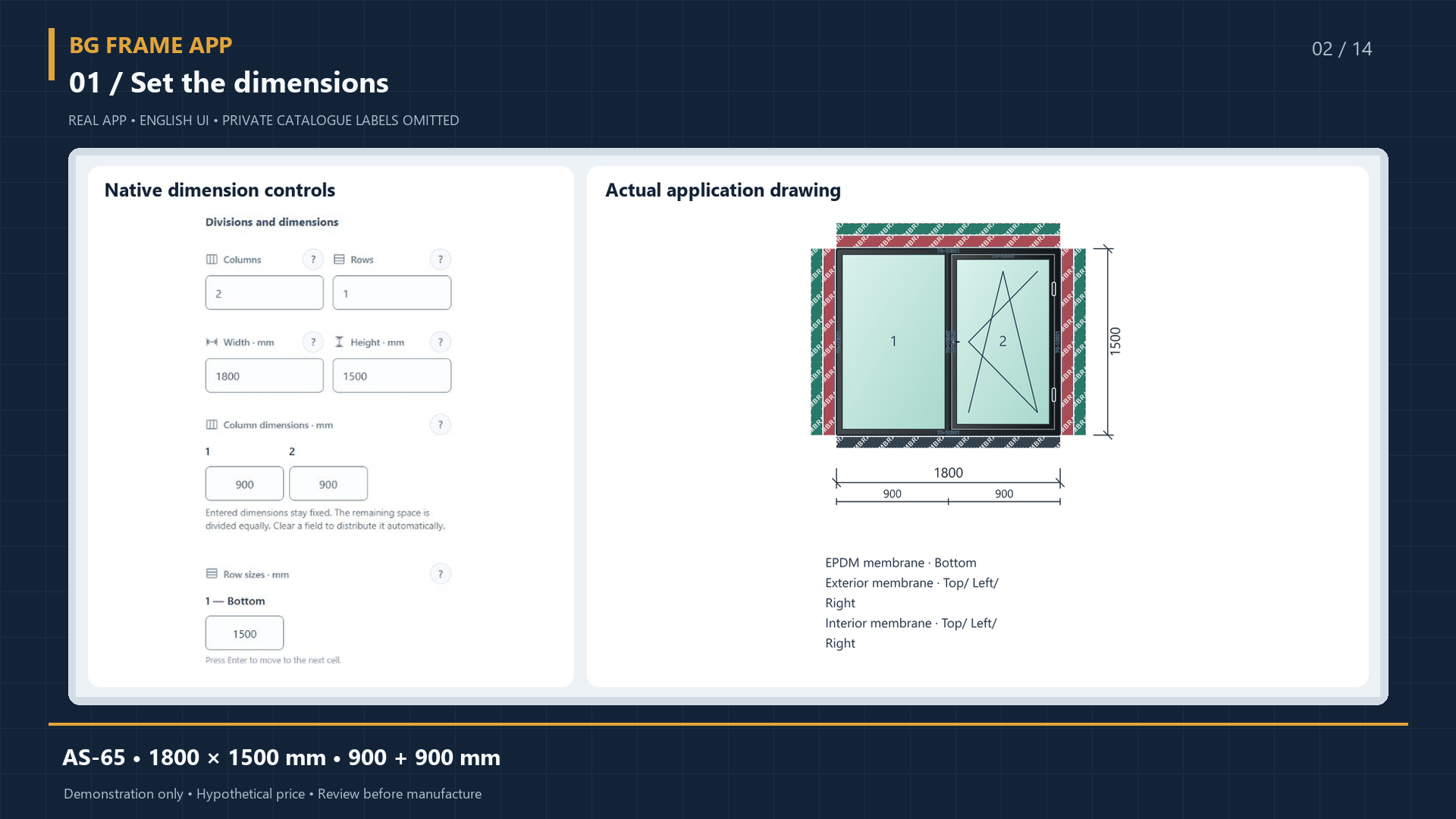
Enter width, height and section divisions. The 1800 × 1500 mm example shows two 900 mm sections with dimensions on the drawing, so you can check the overall size and each cell.
How do I create and check a dimensioned window drawing?
Start with the position dimensions and section divisions. Use two-point measurements to check distances on the drawing.
Steps and example
Select the system and enter width and height.
Set sections and opening types, then check the drawing.
Measure between two points and review the drawing or PDF.
Training example: The illustrated AS65 position is 1800 × 1500 mm with two 900 mm sections.
Scope of this example: Editing a measurement label does not resize the construction. This is a parametric 2D workflow; DWG/DXF exchange, 3D and BIM are not demonstrated here.
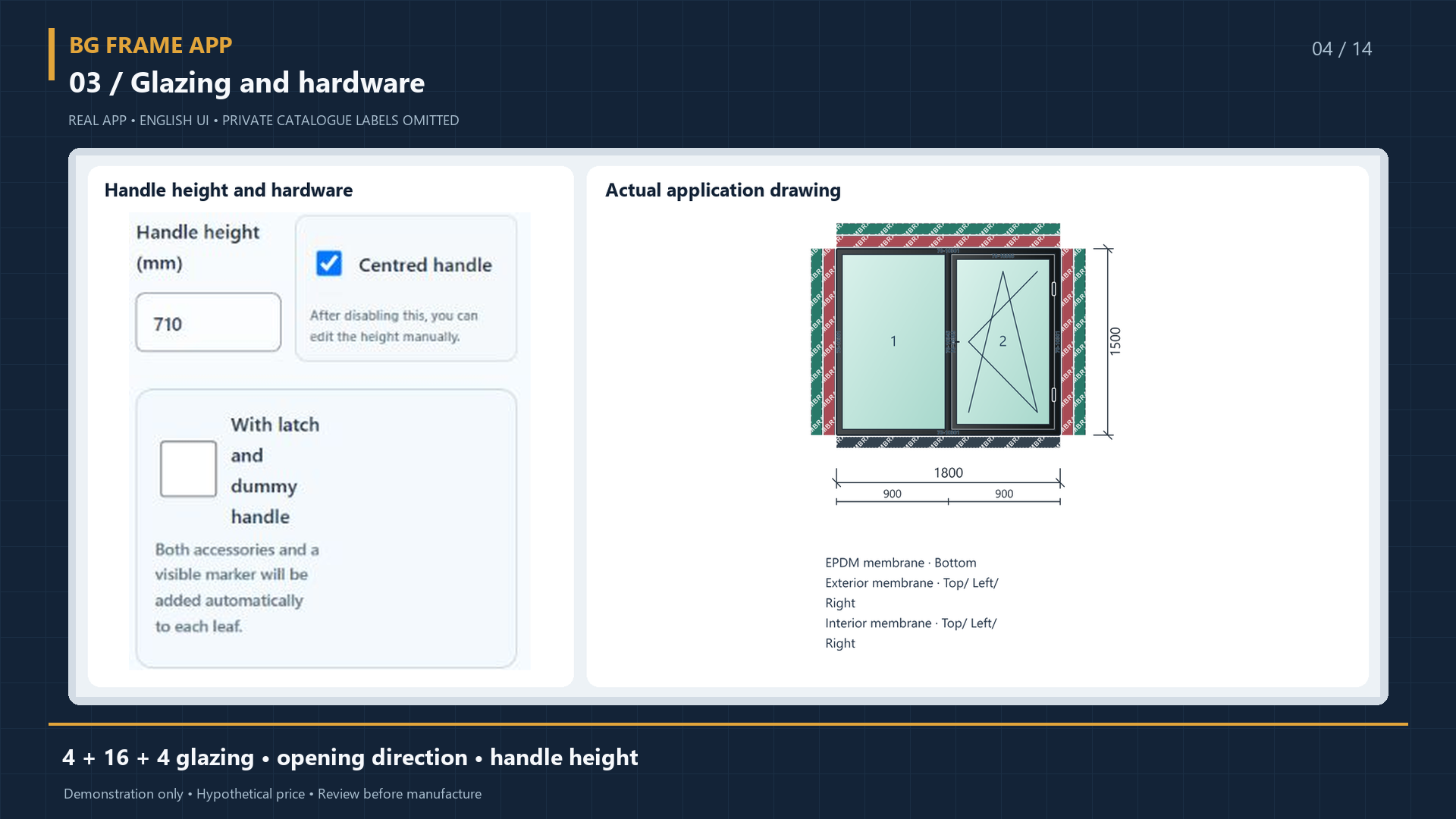
Assign the opening type, glazing and hardware to the selected cell. The drawing symbol shows the opening direction; glazing and hardware choices feed the corresponding reports.
What can I check in a glass and insulating-glass report?
Review glass dimensions, quantity and area for the position. Glass composition and price inputs must match the selected specification.
Steps and example
Choose the glazing specification for each relevant section.
Check dimensions, quantities and units in the glass report.
Verify composition and pricing data before preparing the quotation.
Training example: The AS65 training drawing uses a 4–16–4 glazing notation. It describes a sample composition.
Scope of this example: This notation is not a thermal or acoustic certificate. Profile bar cutting is separate from two-dimensional glass-sheet nesting.
How does an opening type affect the hardware list?
Select the opening mechanism for the sash and check the related hardware set in the material report.
Steps and example
Choose the required opening type.
Review the selected mechanism and its catalog items.
Check quantities, units and available prices in the report.
Training example: Compare a tilt-and-turn sash with a two-sash training construction, using the applicable catalog configuration.
Scope of this example: A mechanism name does not prove a manufacturer’s safety certification or unrestricted hardware compatibility. Check the exact set and system.
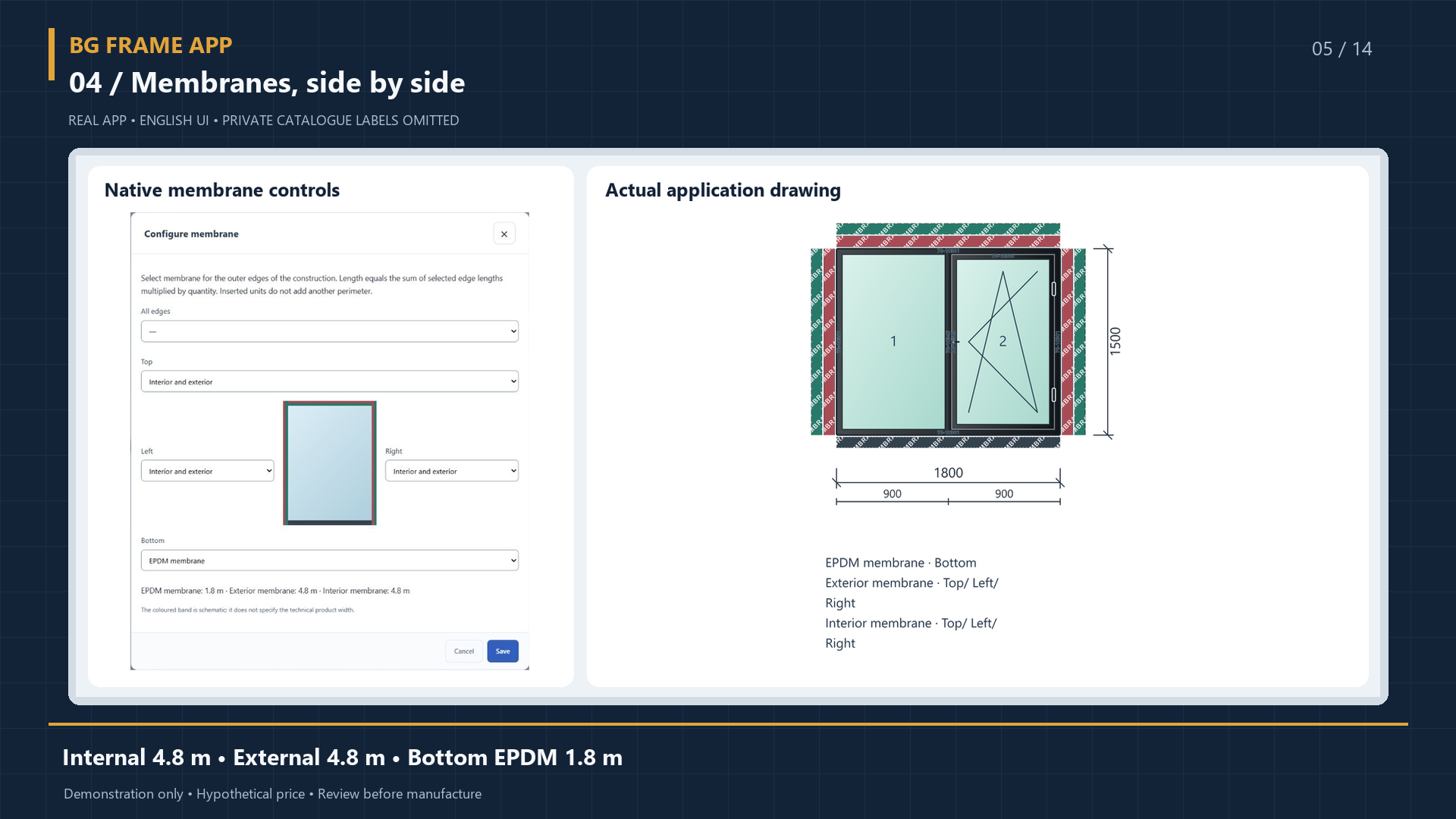
Assign membranes to construction sides. In the demo, the top and two sides total 4.8 metres per set, while bottom EPDM is 1.8 metres. Coloured strips are schematic; quantities also appear in the material report.
For a rectangular construction, select the edges and the interior, exterior or EPDM membrane type. Review length and allowances in the material list.
Steps and example
Select the top, bottom, left and right edges as needed.
Choose membrane types and review the drawing colours.
Check lengths, allowances and position quantity in the report.
Training example: The illustration marks interior membranes green, exterior membranes red and EPDM black.
Scope of this example: Line thickness does not represent membrane width. Curved or sloping edges need a separate check; this is a software quantity workflow, not certified installation guidance.
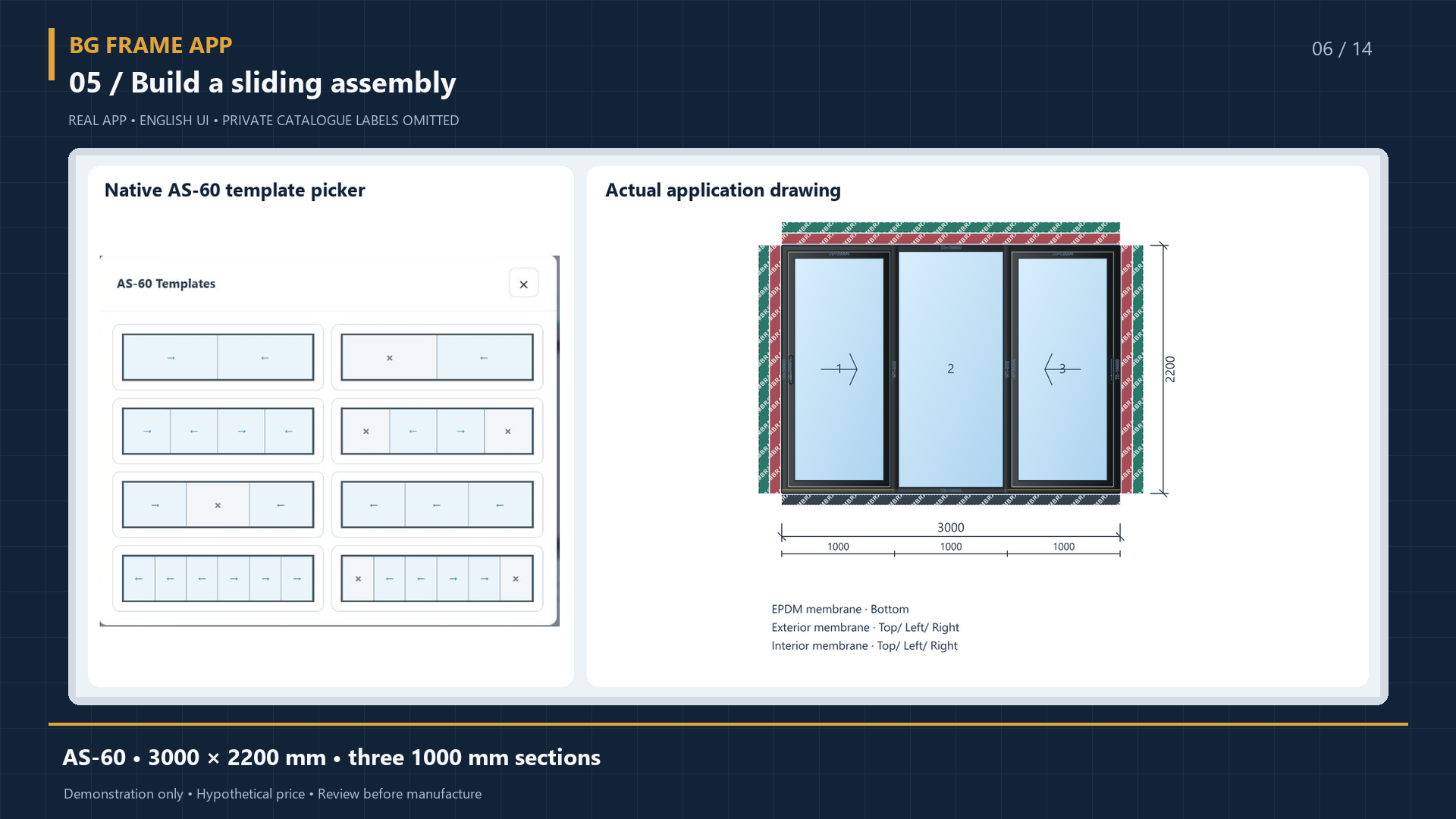
The 3000 × 2200 mm sliding example has three 1000 mm panels. Review moving and fixed panels, rail assignments, glazing and the hardware for each sash together.
Choose the actual sliding system, then review which sashes move, their directions and the rail configuration.
Steps and example
Enter the overall dimensions for the chosen series.
Set fixed and moving sashes and check their directions.
Review the drawing, glazing and material report together.
Training example: The screenshot shows 3000 × 2200 mm; the newer walkthrough uses a separate 2400 × 2100 mm example.
Scope of this example: These are different training positions. A sliding example does not establish lift-and-slide support or compatibility with every hardware set.
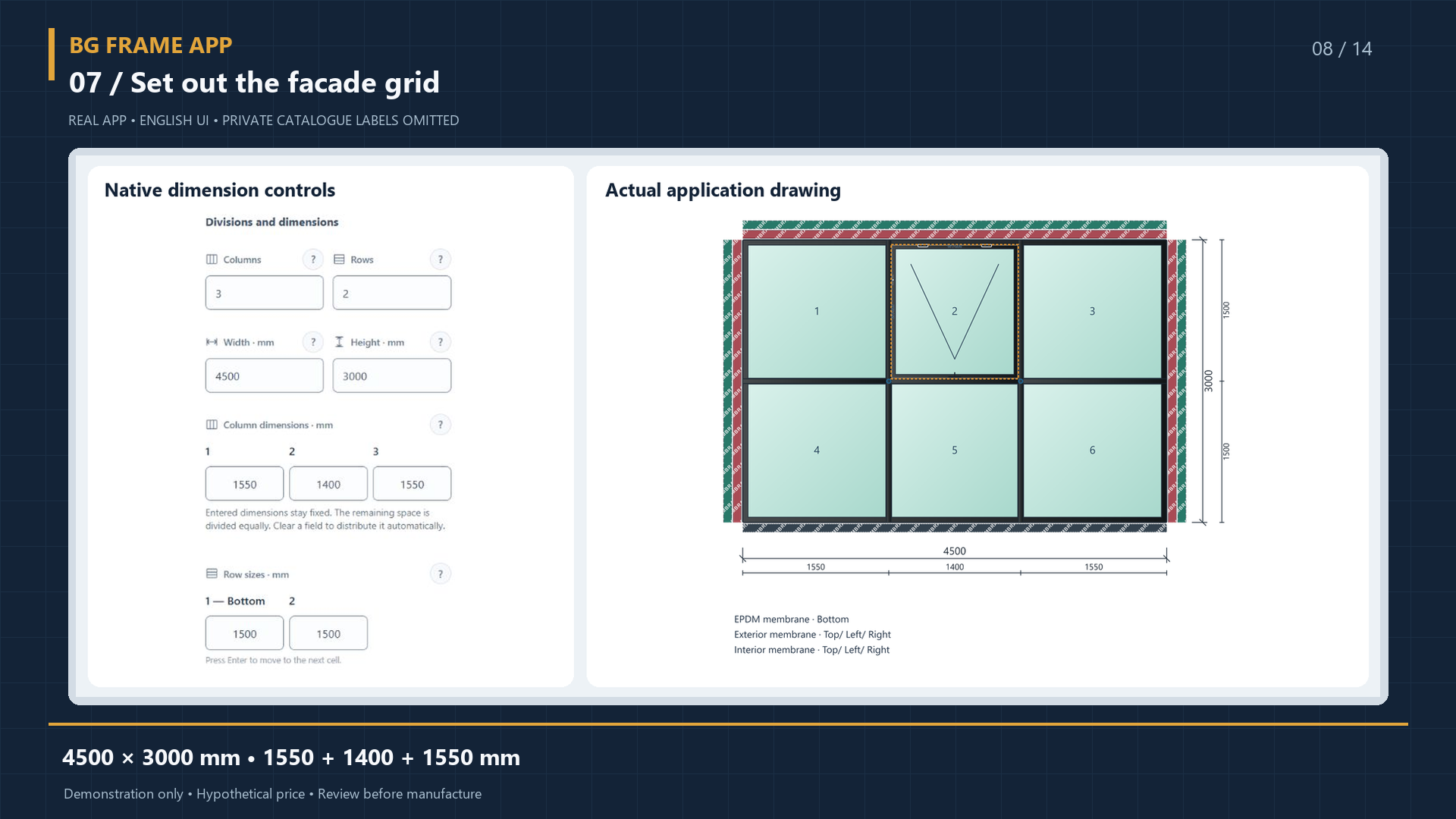
The 4500 × 3000 mm facade example uses three columns and two rows. Changing a section size lets you review the grid, profiles and openings. Application warnings do not replace engineering verification.
Build the mullion and transom layout, review the infill dimensions and then inspect the profiles and glazing in the material report.
Steps and example
Set the facade dimensions and grid.
Review cells, openings and profile extensions.
Compare the drawing with profile lengths and glass dimensions.
Training example: The screenshot uses 4500 × 3000 mm; the newer facade lesson uses 3600 × 3000 mm.
Scope of this example: Layout and quantities do not replace structural assessment, wind-load calculations or certification. Check the selected series before manufacture.
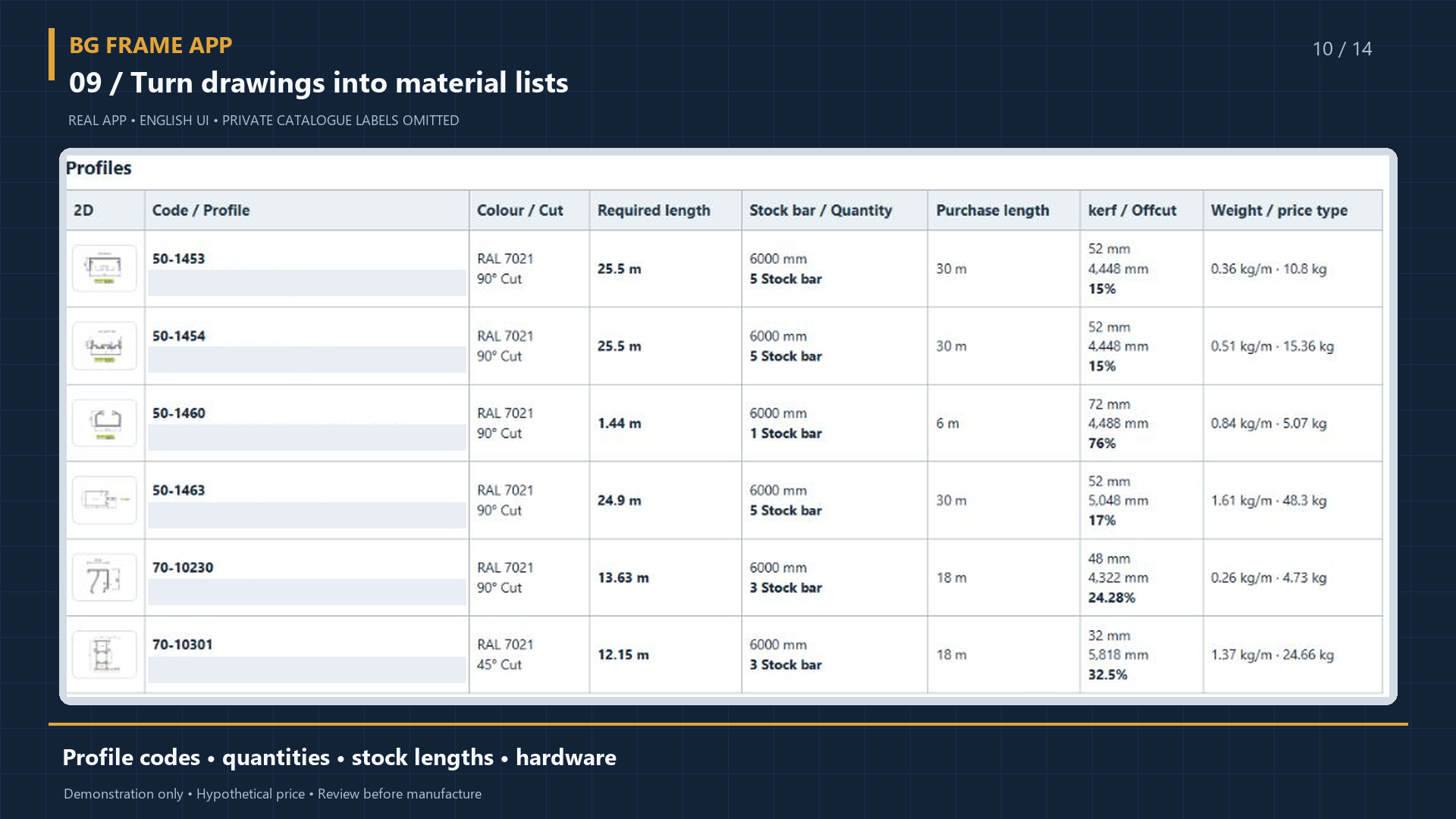
Generate profile, accessory and hardware lists from project positions. Review required length, purchasing quantity, weight and offcuts. Demo reports are available without prices.
The material report connects positions to profiles, glass, accessories and hardware. Required quantity and purchasing quantity are different values.
Steps and example
Save the position with the correct system and quantity.
Open the material report and check codes and units.
Compare required lengths, purchasing quantities, weight and glazing.
Training example: Use the same position for the drawing and the report so each quantity can be traced to its source.
Scope of this example: A material list is not automatic purchasing or a complete ERP. Demo reports hide prices; company catalog data still needs checking.
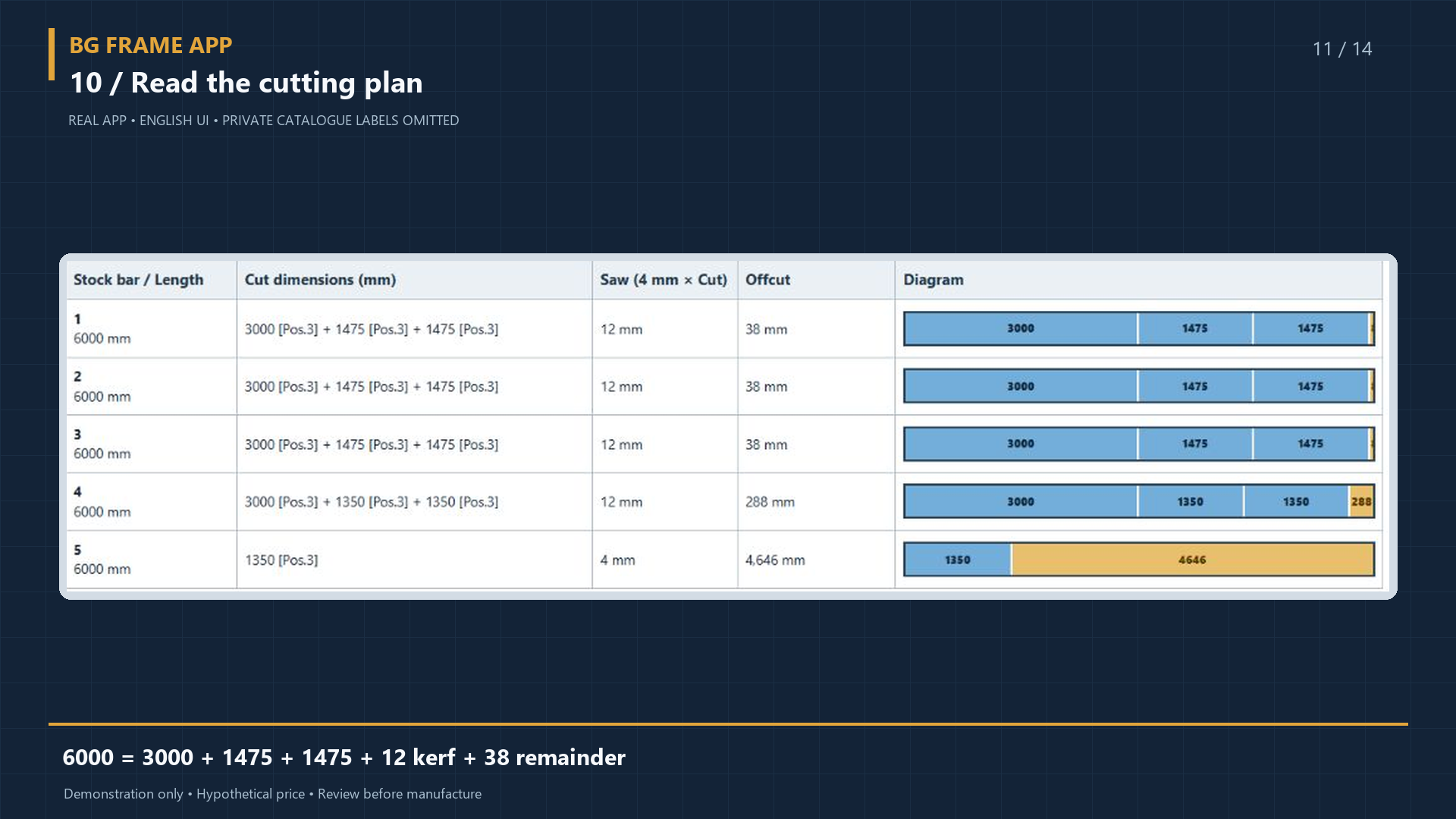
The cutting report groups parts by profile and stock bar. The illustrated 6000 mm bar contains 3000 + 1475 + 1475 mm pieces, 12 mm of saw kerf and a 38 mm remainder.
The cutting report groups parts by profile and stock bar. Saw loss and the remainder must be included when checking the total.
Steps and example
Check stock-bar length and saw-kerf settings.
Compare the required pieces with the cutting plan.
Review a selected reusable offcut and its separate price credit.
Training example: One illustrated 6000 mm bar contains 3000 + 1475 + 1475 mm parts, 12 mm saw loss and a 38 mm remainder.
Scope of this example: This is one-dimensional profile cutting, not glass-sheet nesting. Offcut credit is not a full warehouse system, and no saving percentage is guaranteed.
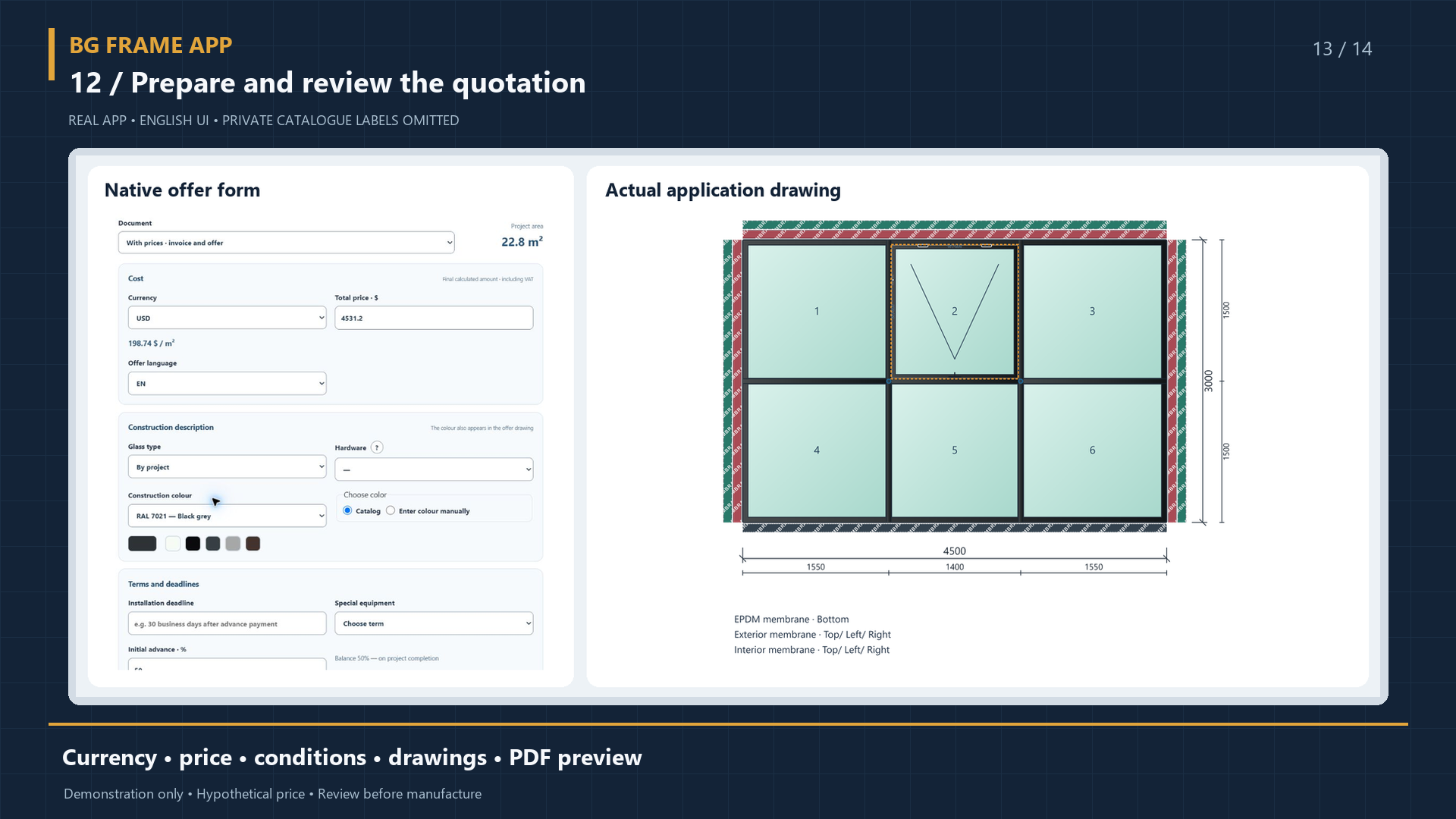
With full access, review costs and prepare quotations with drawings and prices. The video shows a preview using hypothetical amounts. Check the data and PDF before sending a quotation to a customer.
With full access and appropriate permissions, review material and work costs before preparing the customer’s quotation and PDF.
Steps and example
Check material prices, production, installation and transport inputs.
Review markup and VAT settings and the resulting totals.
Choose the document currency and review the quotation or invoice before export.
Training example: Customer documents support USD, EUR and GEL conversion. Check the applicable conversion inputs for the document.
Scope of this example: Basic: 50 USD / 30 days · 2 users · 500 MB; Team: 80.75 USD / 30 days · 5 users · 2 GB; Business: 136 USD / 30 days · 10 users · 5 GB. Prices are final payable amounts in USD per 30 days. Payment and activation are confirmed manually. Existing agreements do not change automatically.
The one-time 30-minute demo requires an account and email verification. Prices are hidden in the demo; trial projects do not transfer to a full account.