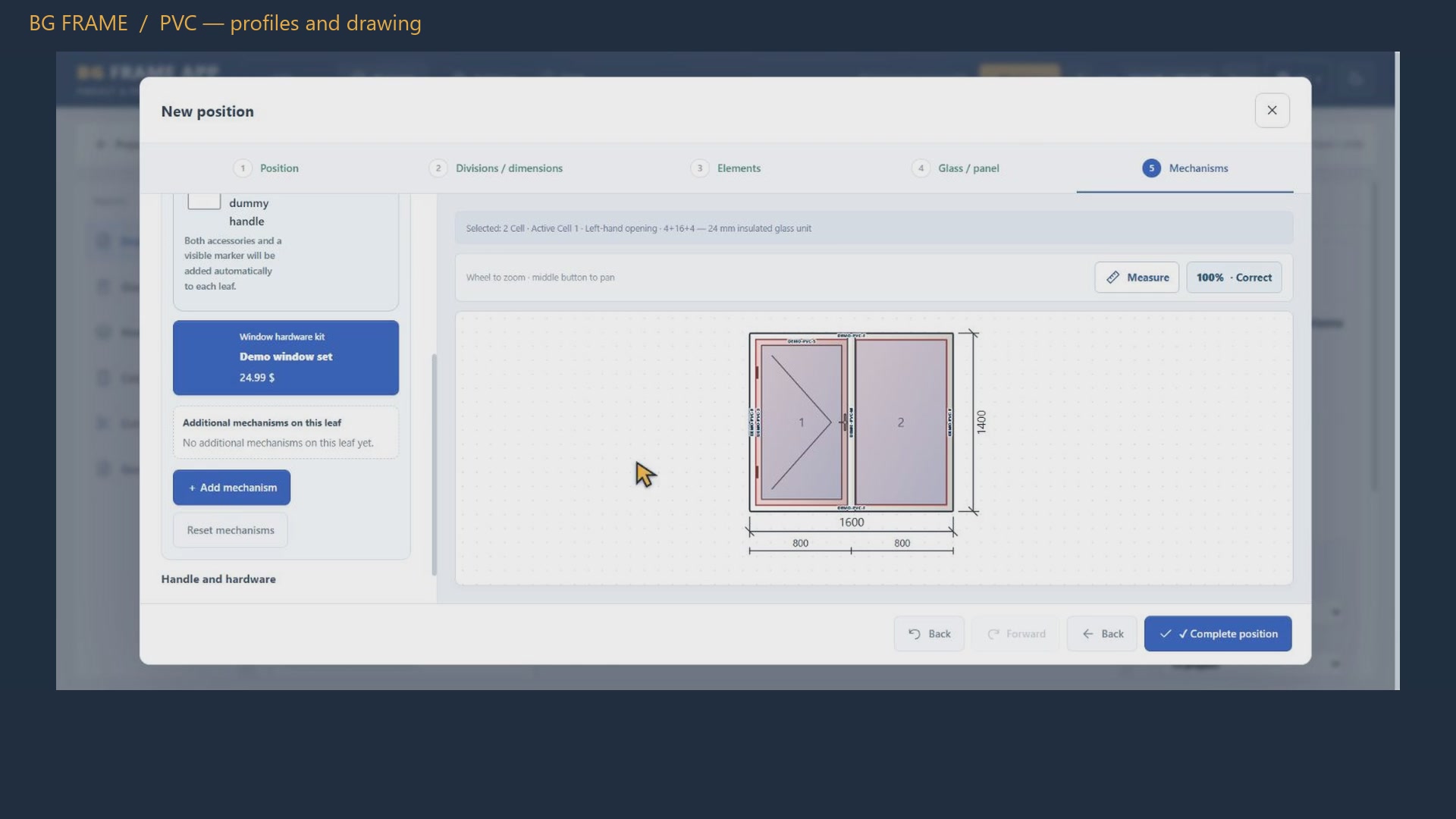
Welcome to BG Frame App. In this walkthrough, we build a thermal aluminium window, a sliding assembly and a facade in one demonstration project. Then we review materials, cutting plans, cost calculations and a quotation. These are real actions in the application. The geometry is for training, and the example selling price is hypothetical. The application is shown in English. Private company details and catalogue labels are omitted from this presentation.
Start by choosing the profile system and colour. Our first position uses A S sixty five, with an overall width of eighteen hundred millimetres and a height of fifteen hundred. Two equal columns create two nine hundred millimetre sections. Dimensions and subdivisions appear directly on the drawing. Check the overall size and the individual sections before choosing opening elements.
Select the right-hand cell, then choose a right-hand tilt and turn element. The left section remains fixed. The opening symbol changes on the drawing, so you can check the intended movement immediately. Selection matters: the highlighted cell identifies the element you are editing. The profile section and its code are also visible in the element controls.
Choose the glazing for the selected cells. Here we use the energy-efficient four, sixteen, four option from the catalogue. Next, select the opening sash and review its hardware kit and handle height. These choices feed the material and hardware reports. Always use a catalogue configured for the actual system and verify compatibility with the supplier before manufacturing.
Membranes are assigned to the outer sides of the construction. We use internal and external membranes at the top and on both sides, with E P D M along the bottom. For this window, each upper and side set totals four point eight metres; the bottom is one point eight metres. The coloured strips are schematic, not the physical product width. The quantities also appear in the material report.
The second position is a sliding assembly, three thousand millimetres wide and twenty-two hundred high. From the A S sixty template choices, we select a three-panel layout. The centre is fixed and the outer sashes slide towards it. Each section is one thousand millimetres wide. Review the rail assignment, movement direction and section widths together , rather than treating the drawing as a decorative illustration.
For the sliding example, select the tempered six, twelve, six glazing option. Each moving sash has its own hardware configuration, while the fixed panel has a different role. The hardware report later shows the direction, sash dimensions, kit and quantity. This makes it easier to connect the visual design to the components required for assembly.
The third position uses the facade system. Its overall size is forty-five hundred by three thousand millimetres, arranged in three columns and two rows. We set the middle column to fourteen hundred millimetres; the remaining width is shared between the two outer columns. Vertical and horizontal profile codes are displayed on the drawing, helping you review the grid and its components.
The upper middle section contains an opening element. During preparation, the application warned that its first width exceeded the configured recommendation. We narrowed that section while keeping the overall facade width unchanged. The final project has no displayed position warnings. Treat these checks as assistance: they do not replace engineering verification of loads, glass, fixings or system limits.
With the positions selected, open the material report. You can include profiles, accessories and hardware, and choose a version without prices. The profile table shows required length, stock length, purchasing quantity , weight and waste. Hardware is listed with its opening direction and dimensions. Use this information to prepare a checked purchasing and assembly list for the project.
The cutting report groups parts by profile and stock bar. In the first row shown here, a six thousand millimetre bar holds one three thousand and two fourteen seventy-five millimetre pieces. Three cuts consume twelve millimetres, leaving thirty-eight. The coloured bar shows the same arrangement visually. Other rows can leave larger remnants, so review the complete plan and your actual stock before cutting.
The calculation view brings together materials and project expenses. For this training example, we deliberately override the total cost to thirty-two hundred dollars and record the reason. A twenty percent markup adds six hundred and forty dollars. In this example, eighteen percent V A T is applied to the resulting subtotal , giving a final price of four thousand, five hundred and thirty-one dollars and twenty cents. These are hypothetical figures, not a real quotation.
Open the quotation workflow, choose the document format and currency, and check the price carried over from the calculation. Add the agreed timing, payment terms and any project-specific notes. Review the preview, including its drawings, before saving a PDF or issuing a final version. In this demonstration we only prepare a preview. Nothing is sent to a customer and no final commercial document is issued.
That is the workflow: define the construction, check its components, review materials and cutting, calculate the price, and prepare the quotation. When a dimension or component changes, refresh the affected reports and check them again. To discuss BG Frame App for your workshop, visit info dot bgframe dot com or contact us using the details on screen.